Find and copy past dictations
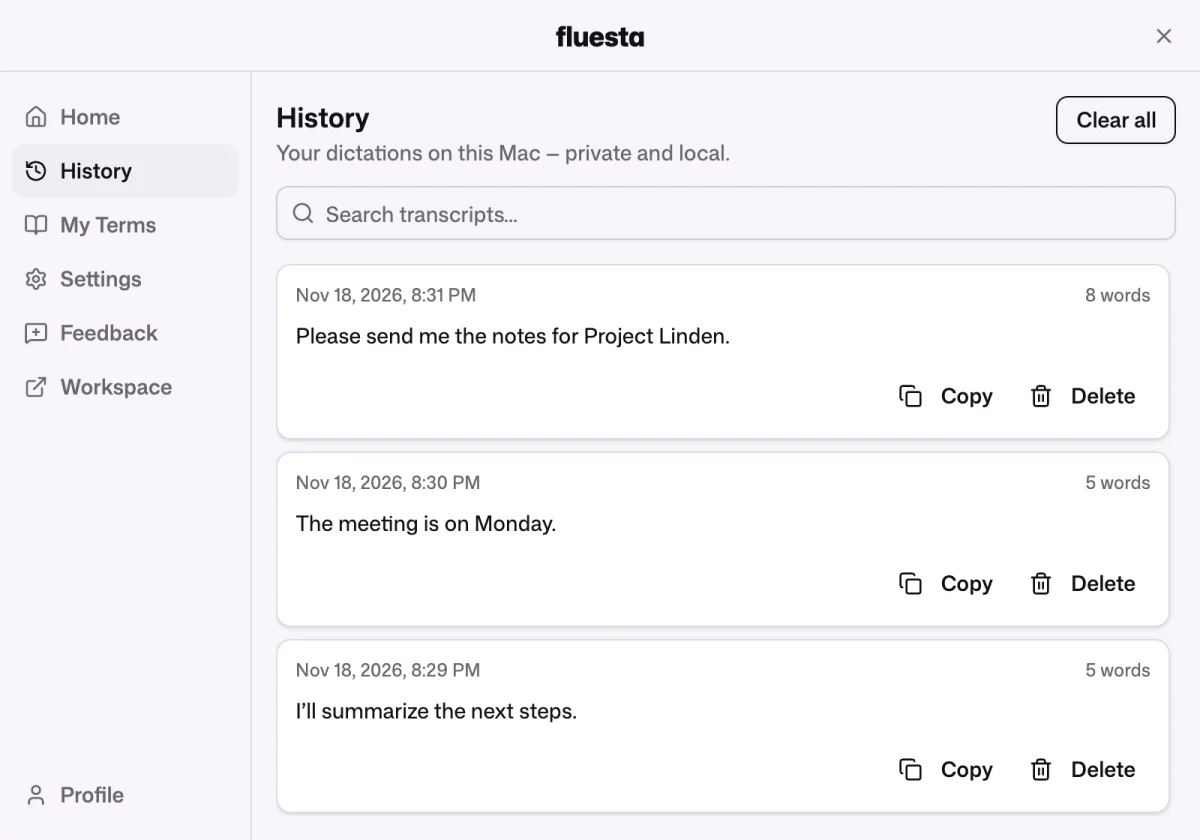
History in the desktop app on macOS and Windows keeps up to 100 recent transcripts. Entries are stored on the device where you dictated them.
Find and copy a dictation
Section titled “Find and copy a dictation”- Open History in the desktop app sidebar.
- In Search transcripts…, type a word from the dictation you’re looking for.
- Select Copy beside the entry. Paste it where you need it with ⌘ + V on macOS or Ctrl + V on Windows.
You can use this to retrieve text when auto-paste fails.
Delete entries
Section titled “Delete entries”- To remove a single dictation, select Delete beside it.
- To remove every entry, select Clear all, then confirm with Delete all. This also removes entries hidden by a search filter.
You can’t recover deleted entries from History.